Creating a Notification Task
Administrator can create any number of notification tasks. Each notification task
should have a well defined target. To create a notification task the Mail Server
Settings must be configured. You can execute the notification task whenever you
want to execute by clicking the "Run" button (Image).
JiJi Password Expiration Notification
Click Create New Notification... the "Password and
Account Expire Notification" dialog box will appear.
New Notification
You can give the description for the current notification task. Select the Expiration
type from the filter as "Password" or "Account", according to your need.
Select the target for this notification task. The target may be a Domain or an Organizational
Unit or a Group or set of Users.
Select Target
You can define your own Maximum password age. If you didn't specify, maximum password
age will be taken from the domain policy or Windows 2008 Fine Grained Password Policy.
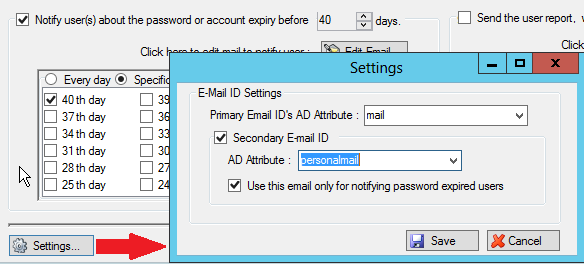
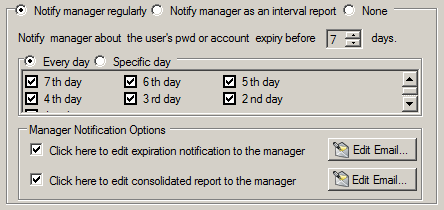
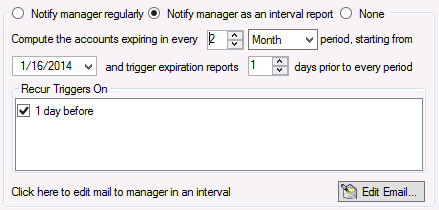
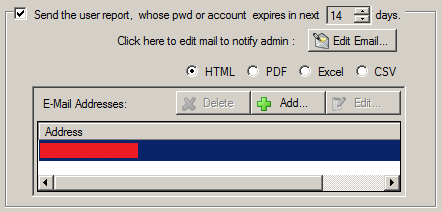
You can send the notification email to the users and managers for the specified
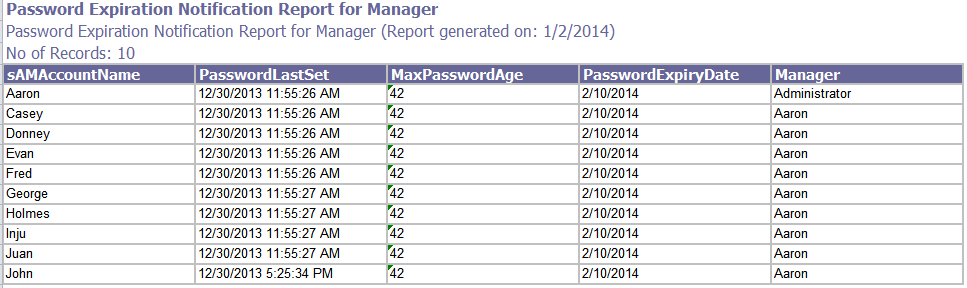
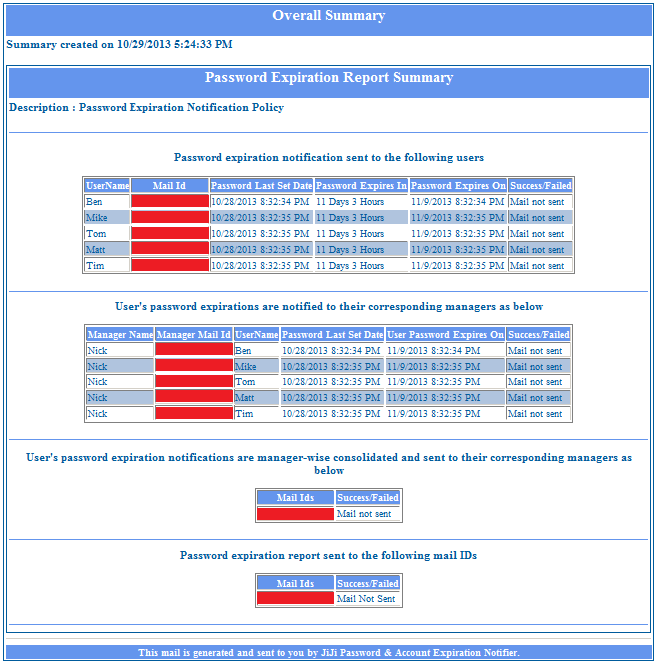
target also you can send the notification report to the specific administrators
email Ids.
You can define the email content and subject by clicking the "Edit Mail" button.
You can use the Macros in the mail subject and mail content. To read more about
editing mail content click
here.
|
|
|
Edit Mail Content

|
Edit Plain Text

|
Edit Html Text

|
View Html Text

|
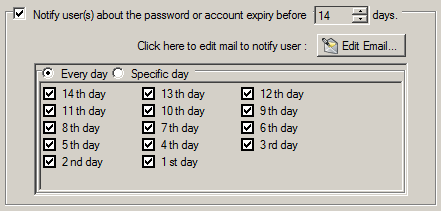
You can send the notification emails everyday or the specific days. After entering
all the details for the notification click "Save"
to save the notification or "Execute and Save" to
execute the notification task and save.